Google+ SMS Update ?
Google has started considering Social Media a strong platform with the increasing expansion of other SNS like Facebook and Twitter. Recently, Google+ went through a complete changeover which was a indirect statement by Google to prove that, ‘They ain’t lagging behind in Social Networking‘. Meanwhile, with this change it drastically attracted a lot of people who were neglecting Google+. With the add on’s of new features, Google has also thought of the situation that when you’re not online how can you share and update posts ? You can do that using your phone through sms groups.
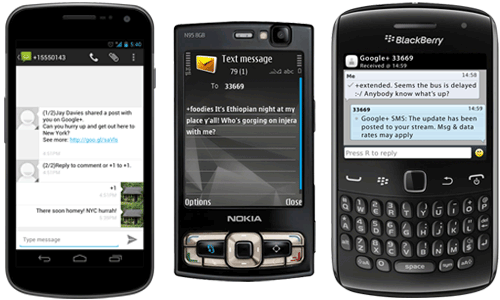
This has led to the introduction of Google+ SMS through which you can stay connected on your way, wherever you go. What’s the benefit ? Well you can’t be online always, and in the time of urgency there won’t be availability on internet services. In this moment, your phone can be your helping hand in performing the online stuffs offline.
You can subscribe to SMS notifications about your Google+ activity, such as comments on your posts which will keep you notifying about newer comments. Post updates to your circles directly from your phone using SMS and also respond to comments or +1 posts via SMS. It’s very simple to use and consumes less time. Follow the below tutorial in order to start texting to Google+

Steps
1. Firstly you need to add and activate your phone number on your Google+ Settings Page. Click here to go to the page and Add your phone number to receive a verification code via SMS. Enter the code from your phone into the verification box to verify it.
2. After verifying your phone number, you can set up an alphanumeric SMS Security PIN which will allow for security to your account during the notifications delivery. You can even change your sharing options if you don’t want to share the updates with everyone in the circles.

3. Configure your settings on the notifications that you would get. Tick the necessary items which you would like to receive as SMS and untick the unnecessary in order to reduce spam from your mailbox and phone.
4. All done now! You can start posting your updates to the number provided for your respective country/region. For India, it’s +91-9222222222 which is dead easy to remember. Hope your phone has got a free message pack for doing this


The Basic Google+ SMS Commands :
- Share a Post Publicly - Add +public to your post
- Share a Post with a Circle - Add +circle name to your post
- +1 a post – Reply +1
- Comment on a Post - Reply with your comment
- Turn Google+ SMS On/Off - Reply start/stop
- Get help – Reply help
If someone shares a post with you or includes you in a comment, you’ll receive a notification via text (SMS). To +1 the original post, reply to the text with ‘+1’ and to add a comment, reply to the text with your message. The best thing you can start a Google+ Conversation through your phone, i.e. Google+ Messenger via SMS. When someone adds you to a group chat in Messenger, you’ll receive an SMS invitation and the content of the conversation you’ve been added to.
- Reply directly to the SMS invitation with your message to join the group chat. You’ll receive a notification whenever someone adds a new message to the conversation, or when someone else is added to the group chat.
- If you don’t want to join the group chat, simply ignore the invitation. If you choose to ignore the invitation, you won’t receive any additional notifications about that conversation.
Once you’re done with the conversation, you can mute it in order to stop receiving the messages and spamming your inbox. To stop receiving notifications about a conversation, text mute to the conversation you’d like to mute and If you’d like to restart notifications about a conversation, text unmute to the conversation you’d like to unmute. And if you leave, then type leave to end the conversation. But you can’t re-enter once you quit a convo.
The Basic Google+ Messenger Commands :
- Receive a list of who’s in the conversation – Text members
- Stop getting notifications about a conversation – Text mute
- Restart notifications about a conversation – Text unmute
- Leave a conversation permanently – Text leave
{via Google Support}
